Trips
Trips let you group your location history into named journeys with dates, notes, and a map of the route.
Trips planned in TREK can be imported and kept in sync. See TREK.
Creating a trip
Click New trip and fill in:
- Name — a label for the trip (e.g. "Japan 2024")
- Start date / End date — the date range to include
- Notes — rich text field (supports formatting via the Trix editor)
Click Create to save. Dawarich automatically pulls in all points recorded within the date range.
Trips list
The trips list shows all your saved trips in one place.

Searching, sorting and filtering
Above the list you can narrow down your trips:
- Search - matches the trip name, its description, the countries it visited and its notes
- Sort - Newest first, Oldest first, Name (A–Z) or Longest distance
- Year and Month - show trips from a given year, or a month of that year (choose a year first)
- Country - show trips that visited a given country
Click Apply to update the list, or Reset to clear every filter. The filters are kept in the page address, so you can bookmark or share a filtered list.
Trip detail page
Clicking a trip opens the detail view, which includes:
- Date range — start and end dates for the trip
- Countries visited — a breakdown of which countries you traveled through with distance covered in each
- Interactive map — your route plotted on a map for the trip's date range
- Notes — your formatted notes for the trip
- Photos — thumbnail previews pulled from connected photo services (Immich or PhotoPrism), with a link to view the full set
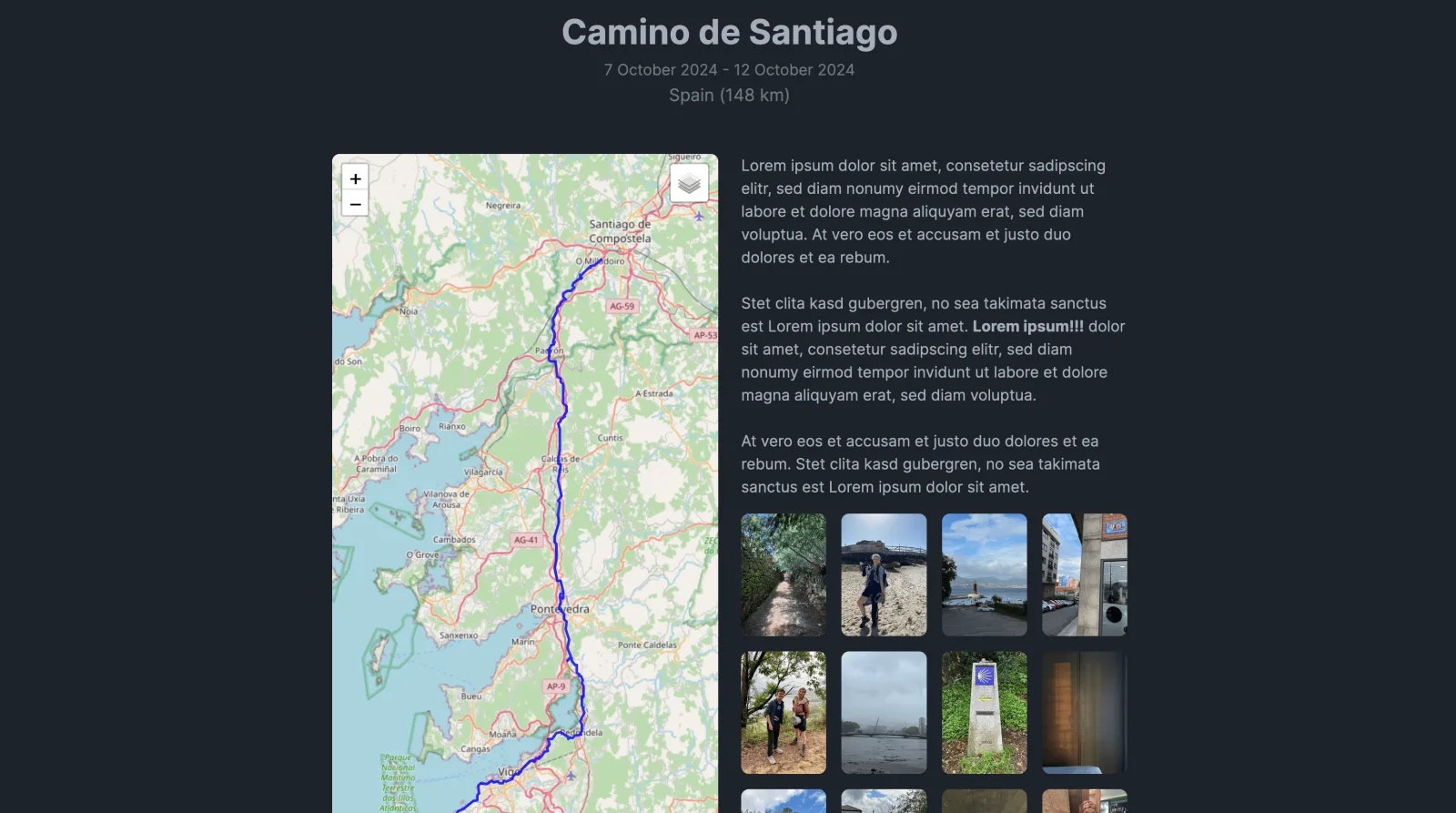
From the trip page you can also open the trip in Poster Studio or Video Studio, and open the full map for the trip's exact dates.
Trips imported from TREK also show the TREK plan above the recorded days.
Sharing a trip
Click the Share trip button on a trip's page and choose Who can view this trip?:
- Anyone with the link creates a public sharing link that works without a Dawarich account, optionally protected by a magic phrase.
- Family members only shares the trip with the other members of your family. This option appears only while you belong to an active family.
A trip has one active link at a time, so creating a new one, for example switching from a public link to family only, replaces the previous link and its old address stops working. In both cases you pick what to include on the shared page: the route map, stats and countries, the day-by-day breakdown, per-day notes, the trip description and photos on the map. Click Create share link to share.
A trip shared with your family appears in each member's trips list under Trips shared with your family, marked Family. Members must be signed in to open it, and they see a read-only page with the sections you chose. The magic phrase only applies to public links. Access follows family membership: when you or a member leaves the family, or the family's plan ends, the trip is no longer shown to them. Your privacy zones still apply.
Editing a trip
Open a trip and click Edit to change the name, dates, or notes. The map updates live as you adjust the date range so you can preview which route will be included.
Deleting a trip
Open a trip and click Delete. You'll be asked to confirm before the trip is removed. Deleting a trip does not delete your underlying location points.